
AI Assistant
The AI Assistant is an intelligent virtual assistant that helps with daily tasks, answering questions, and using the system.
Basic Information
Section titled “Basic Information”- Category: Utilities
- Multi-Instance: No
- Permission: Public (all users)
- Access: Taskbar icon (chat panel) and dedicated application window (settings)
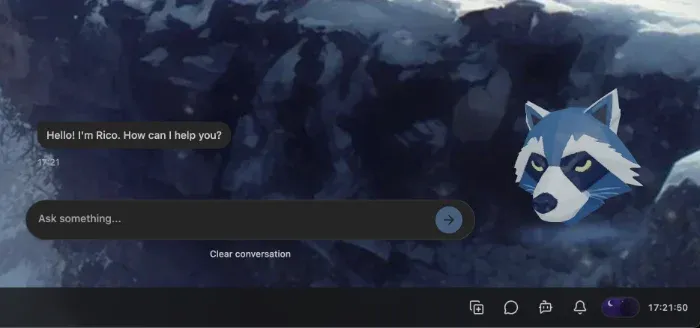 AI assistant
Feature Overview
Section titled “Feature Overview”The AI Assistant consists of two main components:
- Chat Panel: Quick access from the taskbar, real-time conversation with the AI
- Settings Window: Avatar and TTS (Text-to-Speech) settings management
Using the Chat Panel
Section titled “Using the Chat Panel”Opening
Section titled “Opening”The Chat Panel can be opened by clicking the AI Assistant icon on the taskbar. The panel appears on the right side of the screen and doesn’t interfere with your workflow.
Conversation
Section titled “Conversation”- Write a message: Type a question or request in the input field
- Send message: Press Enter or click the send button
- Response: The AI Assistant responds to your question or performs the requested task
Features
Section titled “Features”- Real-time responses: The AI responds immediately to your questions
- Context understanding: The AI remembers earlier parts of the conversation
- Multilingual support: The AI communicates in multiple languages
- Voice output: If TTS is enabled, the AI also reads responses aloud
Settings
Section titled “Settings”The AI Assistant settings are accessible through the dedicated application window. You can launch the application from the Start Panel or desktop shortcut.
Avatar Settings
Section titled “Avatar Settings”Avatar settings allow customization of the AI Assistant’s visual appearance.
Main features:
- Select avatar: Choose from installed avatars
- Quality setting: SD (Standard Definition) or HD (High Definition) quality
- Preview: Real-time preview of the selected avatar
Installing avatars:
Installing new avatars requires administrator privileges. Administrators can upload new avatars in .raconapkg format at Settings > AI Assistant > Avatar Installation.
TTS (Text-to-Speech) Settings
Section titled “TTS (Text-to-Speech) Settings”TTS settings allow customization of voice output.
Main features:
- Select voice: Choose from available voices
- Speed: Set speech speed
- Volume: Set volume level
- Test: Try out the settings with a test sentence
TTS Provider:
Administrators can configure the TTS provider (Browser Web Speech API or ElevenLabs) at Settings > AI Assistant > TTS Provider Configuration.
Save and Cancel
Section titled “Save and Cancel”- Save: Click the “Save” button at the bottom of the window to save changes
- Cancel: Click the “Cancel” button to discard changes
- Test: Click the “Test” button (play icon) to test TTS settings
Note: The save button is only active when there are unsaved changes.
Tips and Tricks
Section titled “Tips and Tricks”- Quick access: Use the taskbar icon to quickly open the chat panel
- Context: The AI remembers earlier parts of the conversation, so you don’t need to re-explain the context every time
- Multilingual: The AI automatically recognizes the language you’re writing in
- Voice output: If TTS is enabled, the AI also reads responses aloud - ideal during multitasking
Frequently Asked Questions
Section titled “Frequently Asked Questions”How can I turn off voice output? Administrators can disable the TTS service at Settings > AI Assistant > TTS Provider Configuration.
Why isn’t the AI responding? Check that the AI Agent is configured by administrators. If the problem persists, check the Log application for detailed error messages.
How can I install a new avatar? Installing new avatars requires administrator privileges. Ask an administrator to upload the new avatar at Settings > AI Assistant > Avatar Installation.
What format should the avatar package be in?
The avatar package must be in .raconapkg format. This is a special package format that contains all necessary files for the avatar.
Related Topics
Section titled “Related Topics”- Settings - AI Assistant - AI Assistant settings in detail
- Settings - Authentication - Administrator AI settings
- Using the Interface - Basics of the Racona interface